
Module 1
| Term | Description |
|---|---|
| Web Browsers | Applications that allow users to access and view web content, like Google Chrome, Mozilla Firefox, Microsoft Edge, and Safari. |
| Web Servers | Computers that store and deliver web content when requested by users, using protocols like HTTP. |
| HTML | The markup language that structures web pages, enabling browsers to display text, images, and links. |
| URL | The web address that specifies where a resource is located, including protocol and domain name. |
| HTTP and HTTPS | Protocols for transferring data between browsers and servers, with HTTPS providing encryption for security. |
| Web Pages | The main content units on the web, created using HTML, which can be either static or dynamic. |
| Web Development Technologies | Tools like HTML, CSS for styling, and JavaScript for interactivity that enhance web experiences. |
| Web Hosting | The service that stores web content on servers, making it accessible to users online at all times. |
| CDNs | Networks of servers that cache web content globally to speed up delivery and reduce latency for users. |
| Search Engines | Search engines like Google, Yahoo, and Bing that help users find web content by indexing websites and providing relevant search results. |
| Web Standards and Protocols | Guidelines from organisations like W3C that ensure web compatibility and consistency across different browsers and devices. |
URLs
A web address can only be referred to as a URL which stands for Uniform Resource Locator.
The five main parts of a URL include:
- Protocol
- Sub Domain Name
- Domain Name
- Top-level Domain
- Path to resources
For example: https://www.rspca.org.au/adopt/
- Protocol: https
- Sub Domain: www
- Domain: rspca
- Top-Level Domain: org.au
- Path: /adopt/
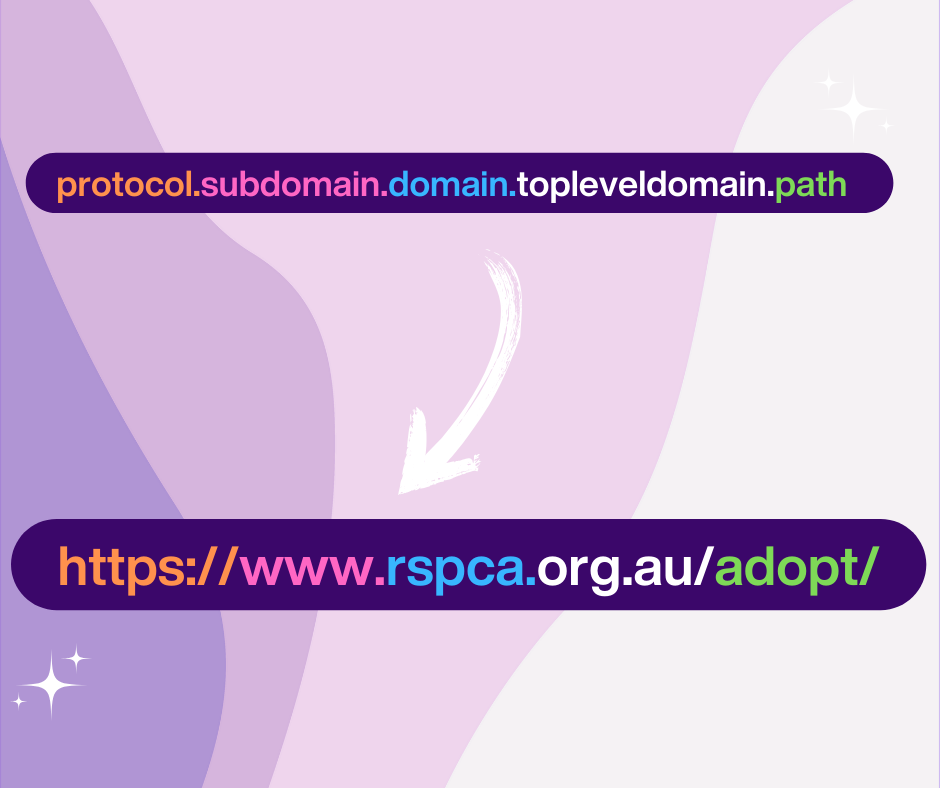
Image by Rachelle Reed via Canva
HTML
HTML, or HyperText Markup Language, is the basic language for making web pages. It sets up the structure of a page, organising elements like text, images, links, and more so they display properly on the web.
Basic HTML Tags
<html> and </html>
The html tag defines the root element of an HTML document.
It signals the beginning and end of the entire HTML content, indicating to the web browser that everything inside is part of an HTML page.
<head></head>, <body></body>, <footer></footer>
These tags define distinct sections of a webpage's structure.
Headings!
Heading tags, from h1 to h6 ranked by importance, define the structure of content on a webpage. They are used to organise text hierarchically. For example:
This is a H1 Heading - the biggest heading tag
This is a H2 Heading
This is a H3 Heading
This is a H4 Heading
This is a H5 Heading
This is a H6 Heading - the smallest heading tag
Paragraphs
The paragraph tags <p></p> are used to define a block of text (like this one!)
Lists
Unordered Lists
Unordered lists can be created by using the <ul></ul> tags.
It displays each list item with a bullet point. Unordered lists are usually used where the order of the items is not so important.
For example, a shopping list:
- Treats
- Squeaky Toys
- Cosy Blankets
- Dog food
- Tennis Balls
- Collar
Ordered Lists
Ordered lists can be created by using the <ol></ol> tags.
It displays listed items in a specific sequence, usually numbered.
For example, step by step instructions on teaching your dog a new trick
- Get some treats ready
- Tell your dog to sit
- Ask them to do the trick
- Try again
- Show them how it's done
- Ask them to try again
- Give up. Give them the treat anyway
HR
The <hr> tag creates a horizontal line or rule on a webpage. It’s usually used to seperate content or sections within the page.
It visually indicates a break in the flow of the content. This tag is a self-closing element. Below is an example of this tag in use:
BR
The <br> tag inserts a line break (break row). Any content after this tag will appear on a new line.
Like this!
Images
The <img> tag embeds images in a webpage and requires the src attribute for the image location.
It’s a self-closing tag that can also include alt, width, and height attributes.
In the above images are a great example of this. They all include alternative text and a specific width and height attribute.
Strong and Emphasize
The <strong></strong> tag dictates something is very important or urgent.
It's used for information that should grab attention, like warnings or key details, such as crucial instructions or significant facts.
The <em></em> tag emphasizes text and usually appears in italics.
It highlights specific words or phrases to add meaning or express feelings, like in stories or conversations.
Hyperlinks
The <a></a> tag is used to create hyperlinks in HTML, allowing users to click and navigate to other web pages, resources, or different sections of the same page. It uses the href attribute to specify the URL of the link.
Additionally, the target attribute can control how the link opens, such as in the same window (jump to section) or a new tab.
Here is example of a Link to Google Visit Me
An image can also be used as a link. Click on the paw prints to head back to the Home Page.

Image by Canva Canva
Code
The <code></code> tag allows a user to display code snippets in HTML. It renders text in a monospaced font like this, distinguishing it from regular text.
It's typically used to display actual pieces of code in the text of the web page
Subscript and Superscipt
The <sub></sub> tag makes the text slightly lower the normal text line. It's usually used in chemical formulas or footnotes.
For example, H2O
The <sup></sup> tag makes the text slightly above the normal text line. It's usually used in mathematical equations.
For example, E = mc 2
Strikeout
The <s></s> tag strikes through the nominated text. This is usually commonly used to show something is no longer relevant and has been "crossed out".
For example, The price of an apple is $5 $2
Attributes: ID and classes
ID Attribute
The id attribute assigns a unique identifier to an HTML element. It must be unique within a page and is used for styling with CSS or with JavaScript.
Class Attribute
The class attribute allows you to assign one or more classes to an element. Classes are not unique and can be reused across multiple elements, making them useful for applying common styles or behaviors.
Div Tags
The <div></div> tag is a block-level element used for grouping content and applying styles.
It helps divide the web page into sections, making it easier to manage layout and design through CSS.
Anatomy of a Web Page
The basic anatomy of a webpage usually includes elements like a navigation menu for easy access to different sections, a hero section that highlights key content, and a content area where the main information is displayed. Additionally, there might be a sidebar for extra details and a footer containing important links and copyright info. Whitespace is also important for readability and visual appeal.
Module 2
Planning Your Website
Wireframe
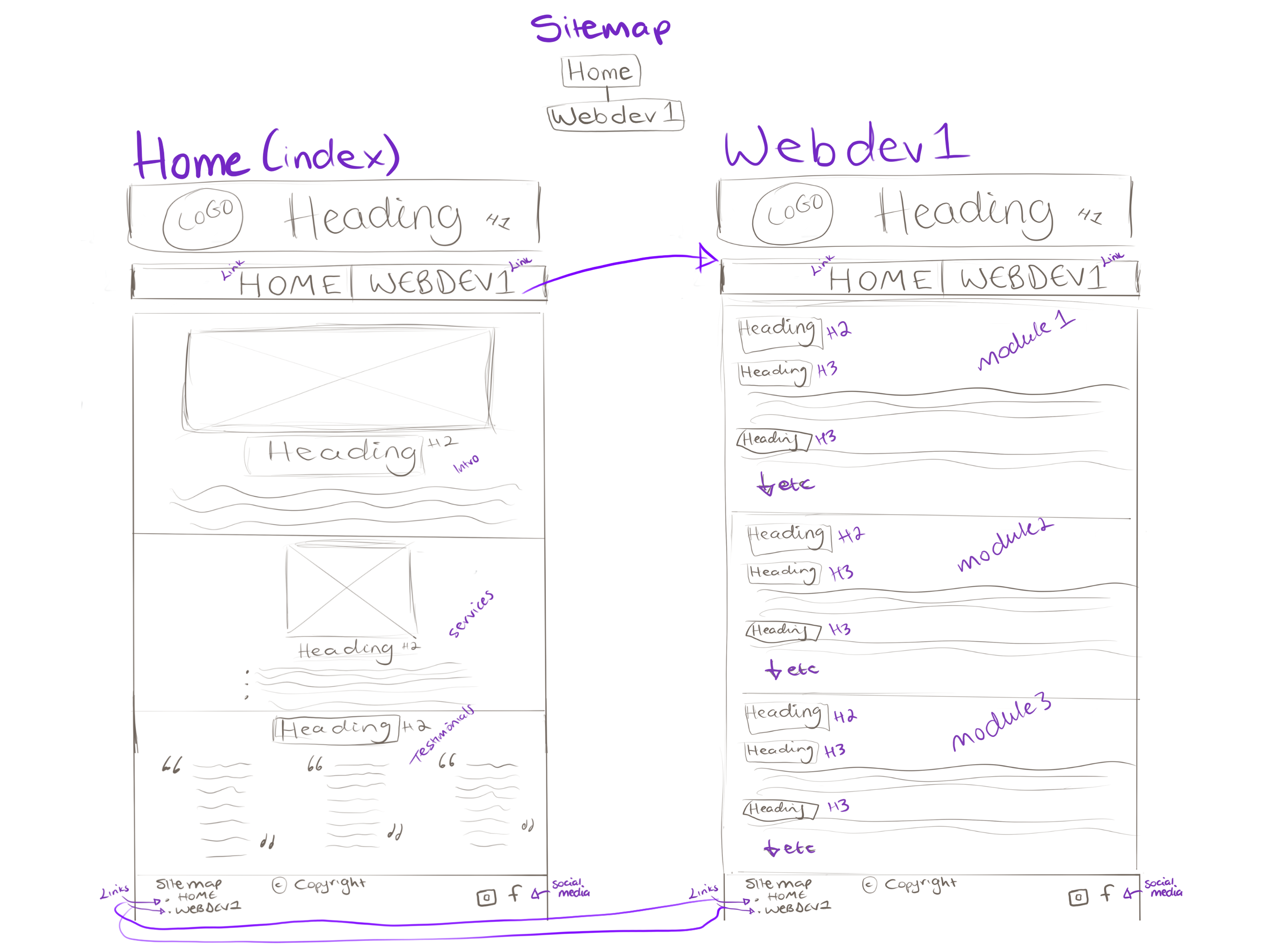
A wireframe is a simple layout of a webpage that shows the structure of content without design details. It's useful for planning and organising the page's elements, ensuring everyone agrees on the layout before adding complex design.
Wireframe Sketch
The design process typically begins with a rough sketch of the web page's wireframe
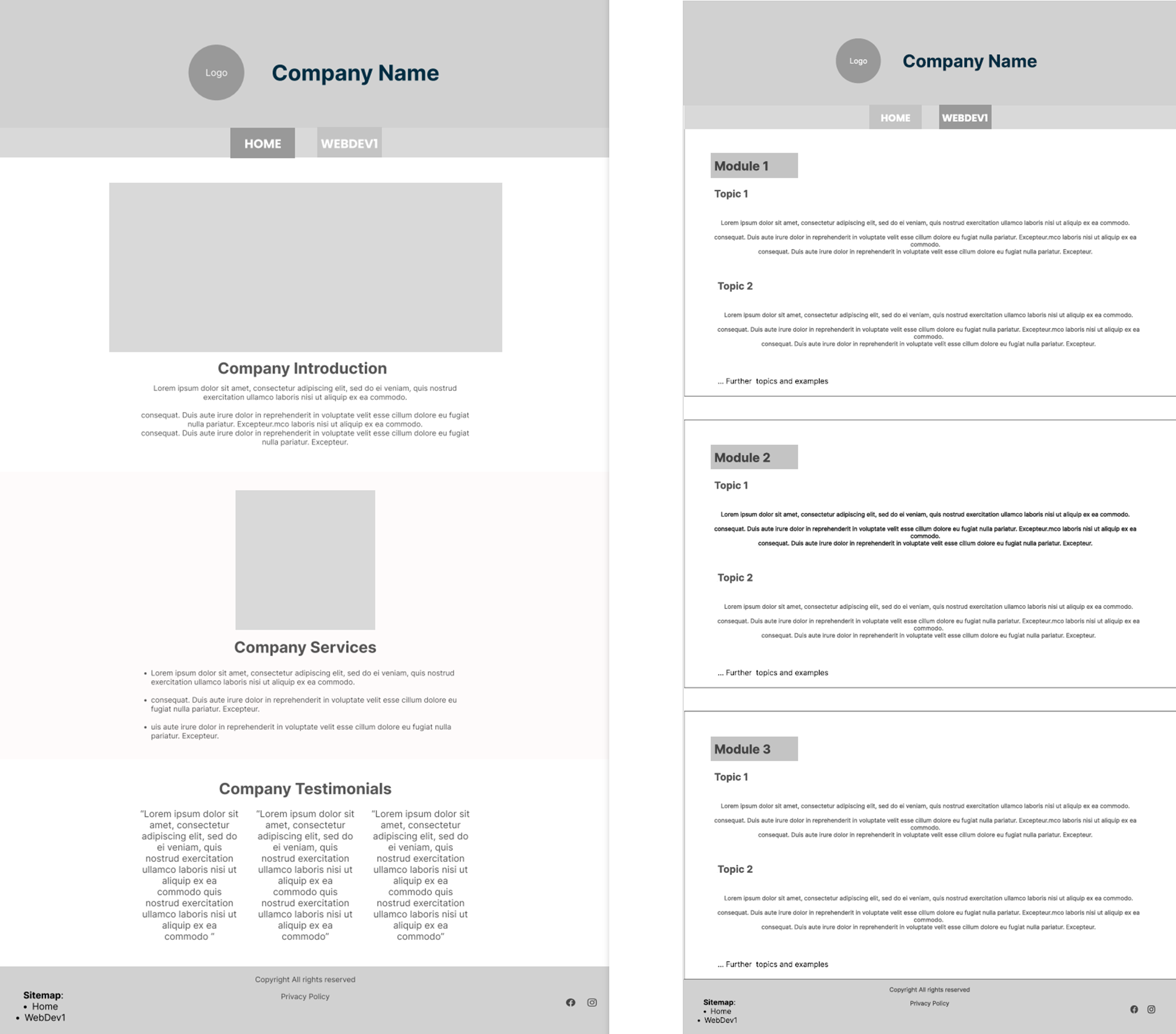
Wireframe Prototype - Figma
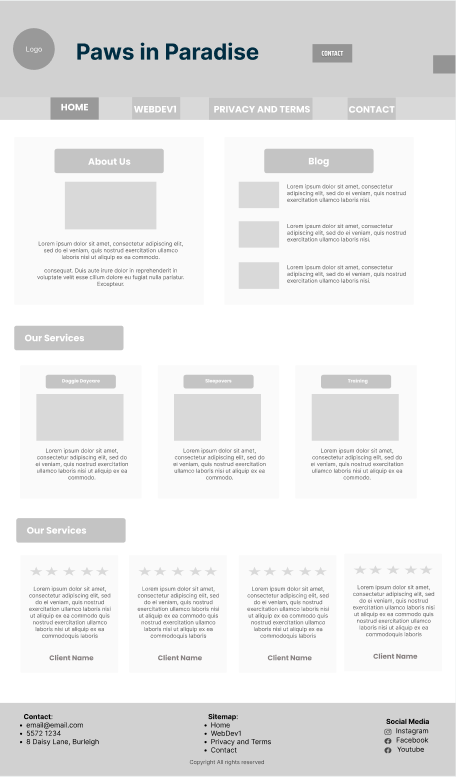
The next step is to create a digital prototype. This lets designers turn sketches into a digital design, making it easier to gather early feedback, test usability, and refine ideas, saving time and reducing costly changes later in development.
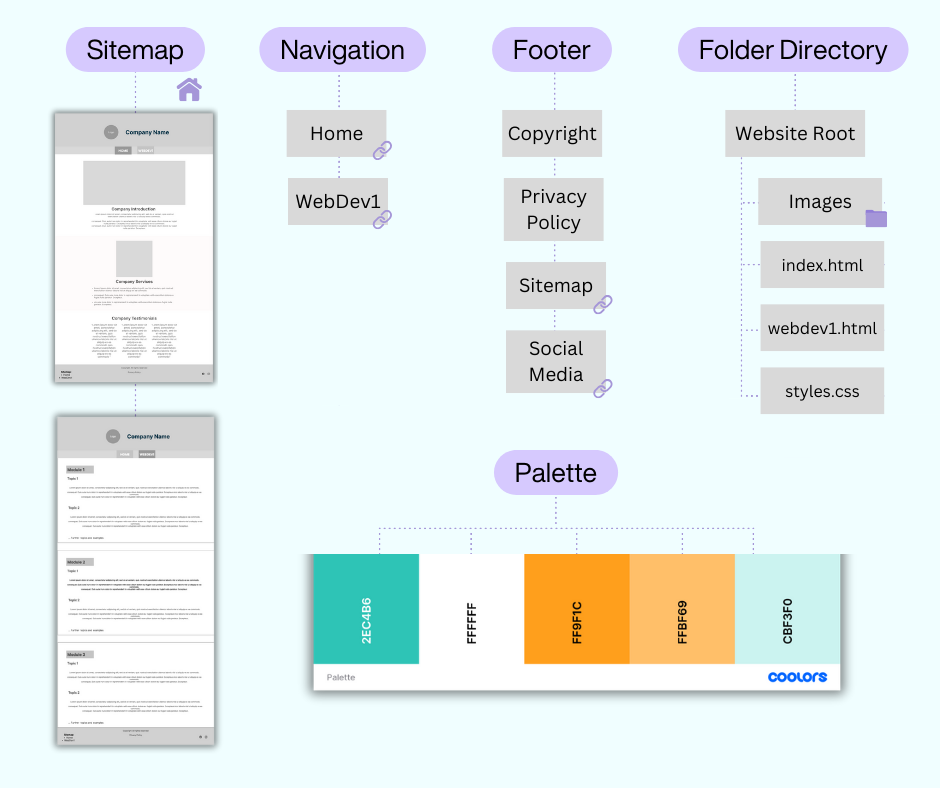
Sitemap and Folder Structure
Creating a sitemap and folder structure in a prototype lets you map out the website’s content and layout clearly, helping to visualise the user journey. It also keeps files organised, making it easier for the design and development teams to manage and update the site as it expands.
From Prototype to Final Design
When transitioning from a prototype to the final design, changes often happen due to adjustments in content, layout, or specific website needs. For example, the logo in the prototype was placed to the right of the heading, but in the final design, it’s moved to the top of the page. This shift makes the logo stand out more and creates a better visual balance. Other elements, like the positioning of images and text, were also adjusted to improve the flow and overall look of the page. These changes help make the final design more effective and user-friendly based on feedback and design refinements.
Module 3
Website Styling
Cascading Style Sheets
What are they?
Cascading Style Sheets (CSS) is a tool used to style a webpage, controlling how things like text, colors, and layouts look. It helps adjust things like font size, element positioning, and spacing. CSS also makes websites more flexible, allowing them to look good on different devices, and adds effects like animations to make the page more engaging.
Some of the declarations that can be applied to a selector include:
In-line CSS
In-line CSS is used directly within an HTML tag using the style attribute. It's useful for quick, specific changes to individual elements, but can make the code messy if overused.
This text has been styled with inline CSS. We have updated the font-family, background color, color, and font size.
External CSS
Embedded CSS is placed inside a style tag in the HTML head section. It’s useful for styling a single page without needing an external file, keeping styles organized for that page only.
This web page uses some embedded CSS styles
External CSS
External CSS is written in a separate .css file and linked to the HTML. It's the most efficient for styling multiple pages because it keeps the HTML clean and allows you to reuse the same styles across a website.
This web page uses an external css file. This file contains the standard styling for the key areas of the website including header, navigation and footer
CSS Box Model
The CSS box model describes how elements on a webpage are structured and how their dimensions are calculated. It consists of four parts:
Content: The actual content of the element, such as text or images.
Padding: The space between the content and the border. It adds space inside the element.
Border: A line surrounding the padding (if defined), which can be styled.
Margin: The outermost space around the element, creating distance between it and other elements.
Borders
Borders are used to define a visible outline around an element. They help to add structure, separation, and visual emphasis to parts of a webpage.
The border can be adjusted based on the colour, size and style.
Here are some examples showing the code used and the border that code creates:
This paragraph has a solid border in #2ec4b6.
This paragraph has a dotted border in #ffbf69.
This paragraph has a dashed top border in #2ec4b6.
This paragraph has a solid left border in #ffbf69.
This paragraph has a solid border with rounded corners.
Module 4
JavaScript
What is it?
JavaScript is a programming language that helps make websites more interactive and engaging. While HTML provides the structure and CSS handles the styling, JavaScript adds functionality by allowing the webpage to respond to actions like clicks, typing, or scrolling. It runs directly in the browser, enabling changes to happen instantly without reloading the page.
In-line JavaScript
In-line JavaScript is written directly within an HTML tag using an attribute like onclick or onchange. It’s useful for applying specific functionality to individual elements, but overusing it can make the code harder to read and maintain.
Embedded JavaScript
Embedded JavaScript is placed inside <script> tags within the HTML body, usually near the end of the body section.
This method is useful for applying scripts to a single page which keeps the related code organised without needing an external file.
This web page includes some embedded JavaScript to enhance its functionality.
External JavaScript
External JavaScript is stored in a separate file with a .js extension and is linked to HTML using the <script>tag in the head.
This method keeps the code nice and tidy and reusable across multiple pages.
JavaScript Examples
The possibilities of JavaScript for adding interactivity to websites are almost endless! Below are a few basic examples to demonstrate how JavaScript can make a web page interactive.
Changing Styles
One of the most basic changes JavaScript can make, is changing the basic styling of elements.
This includes background colours, font size, and colors.
Including these on a website can be useful for accessibility reasons (visually impaired users, etc.), or even for a fun, personalised experience.
Click the below buttons to dynamically change the styles to an alternate setting.
Interactive Activities
Javascript can also add some interactive activies a web page. This may be a calculator, counters, and even games
Fetch the Ball Game
Click the ball as many times as you can in 10 seconds!

Score: 0
Search Bars
A search bar can be set up to search for key words in a website, web page or even a specific section of a web page.
A search bar has been added to this web page on the left hand side column so the user can search for specific terms within the content.
The results will display any matches and when clicked on, will bring you to that section of the web page.
The below video shows an example of how it works
Accessibility Functions
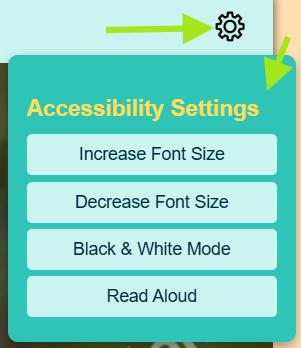
JavaScript brings essential functionality to the page, making it more accessible for users with visual or hearing impairments.
This website offers accessibility options such as adjustable font sizes, a black-and-white mode, and high-contrast settings to ensure an inclusive and user-friendly experience for everyone.
Forms
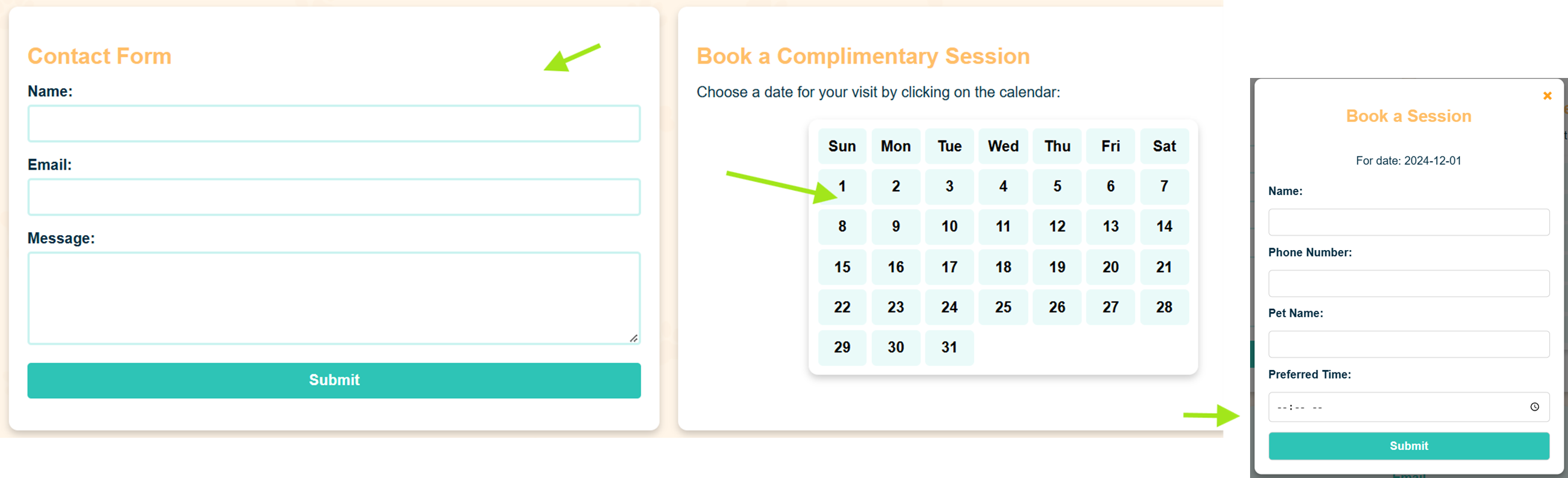
A very common use of Javascript on most websites is some kind of form. This is usually the contact form but could also be a registration form, order form, booking form etc.
This website has two forms set up using JavaScript. They are both on the contact page.
The first is a basic contact form with validators prompting the user to enter valid responses
The second form is set up within the calendar. When you click on a date on the calendar, a booking form will appear.
Module 5
Content Management Systems
What is it?
Content management systems enable users to create and publish websites and other digital platforms. One of the biggest CMS is Wordpress. Wordpress allows users to create, edit and publish all sorts of digital materials.
Themes
Themes can be used on a website to apply specific styling techniques and assist with overall layout and design.
The home page of this website is using the Astra theme
Plug-ins
Plug-ins are tools that can be added to your webpage. There are many plug-ins available for different functions. These include the ever so popular, Elementor plug-in that allows you to drag and drop and create your web page without having to manually type the code. Other plug-ins include specific interactive layouts, contact forms, analytics, search engines, ecommerce and other packaged code that brings functionality to the web page.
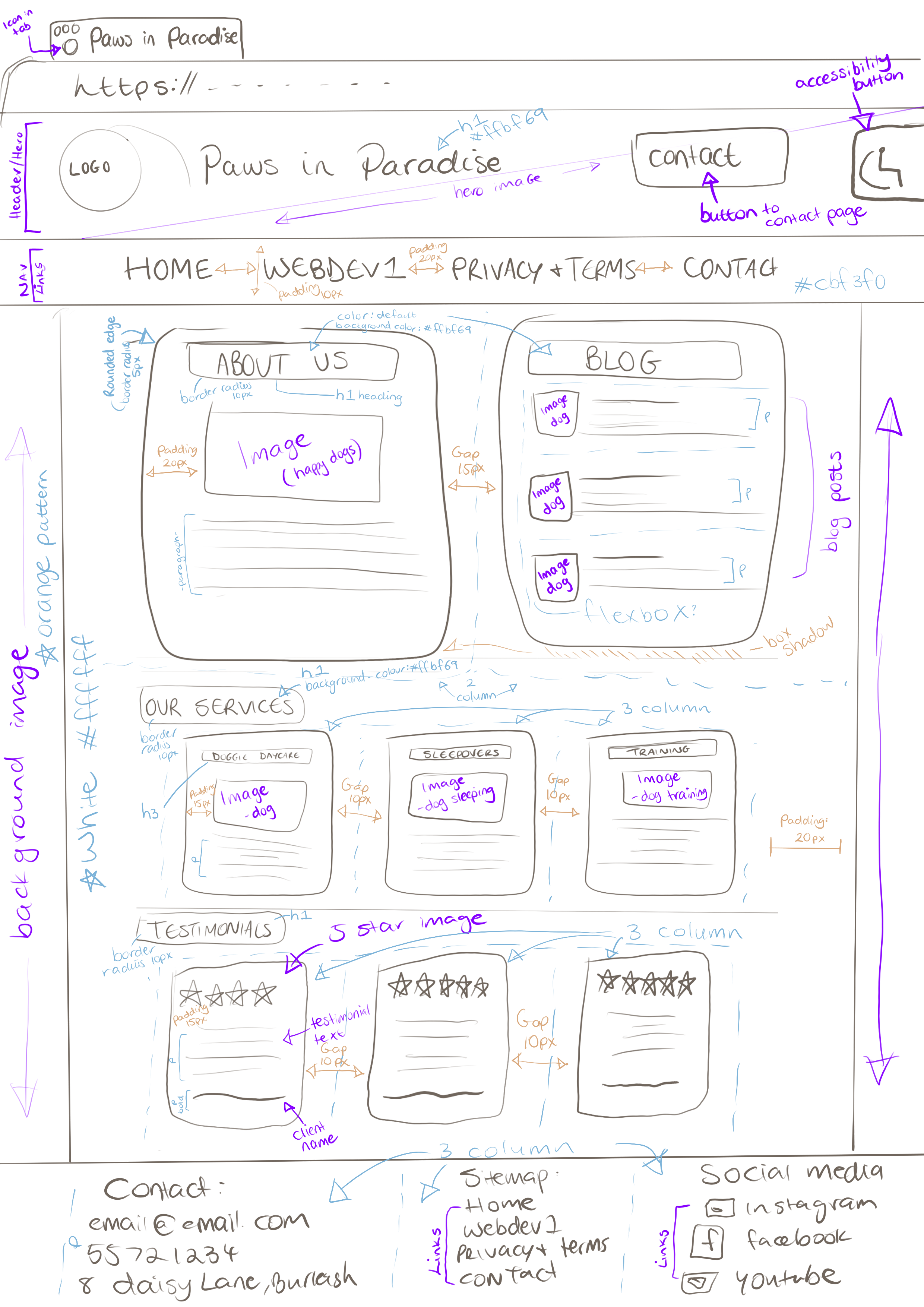
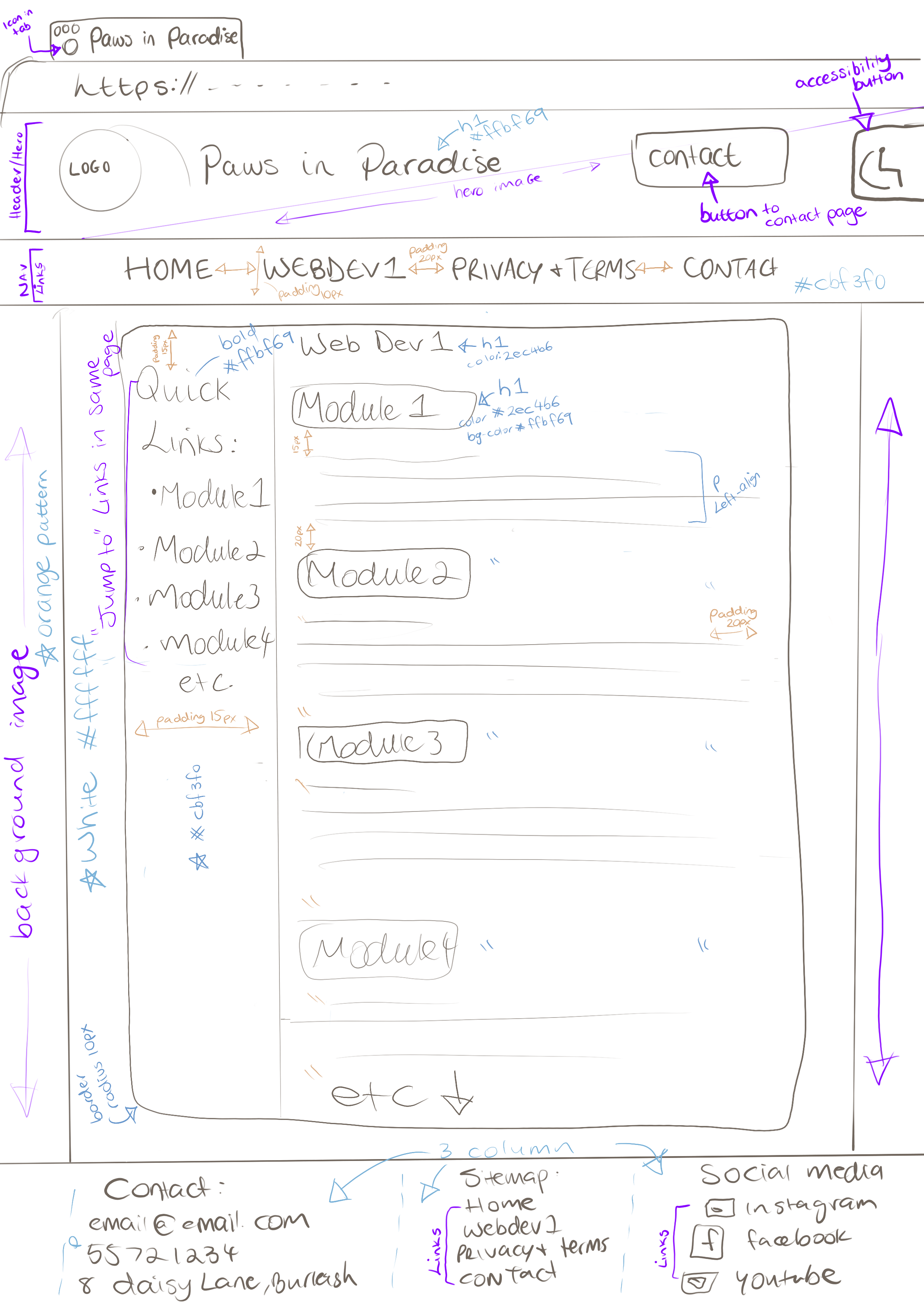
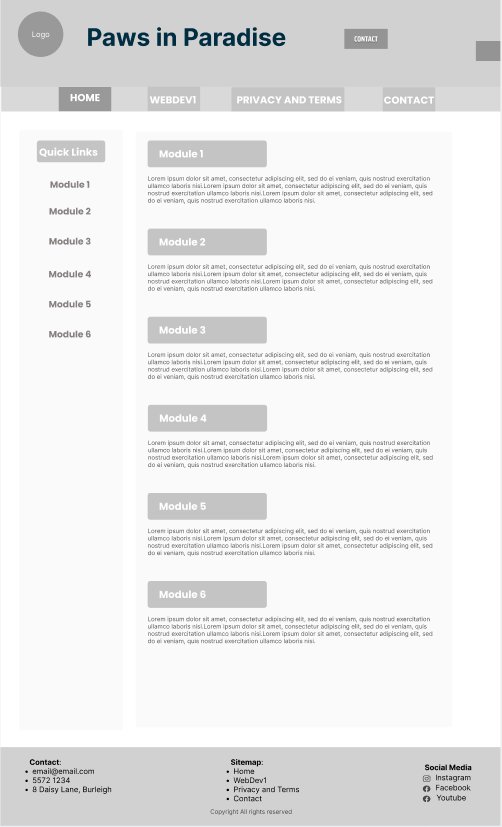
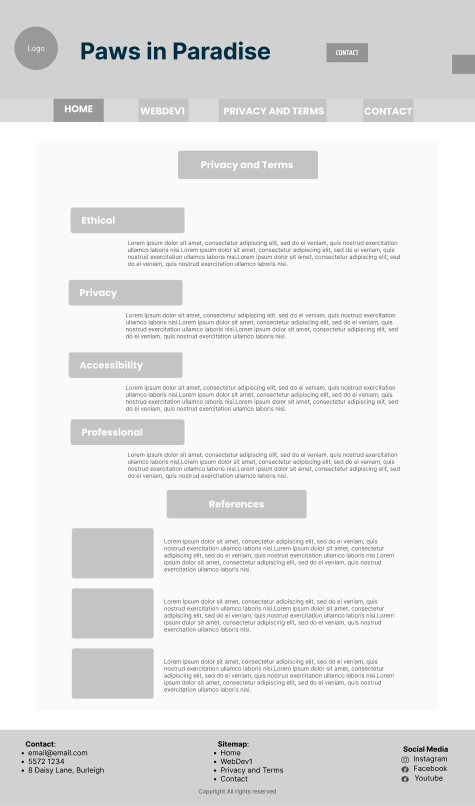
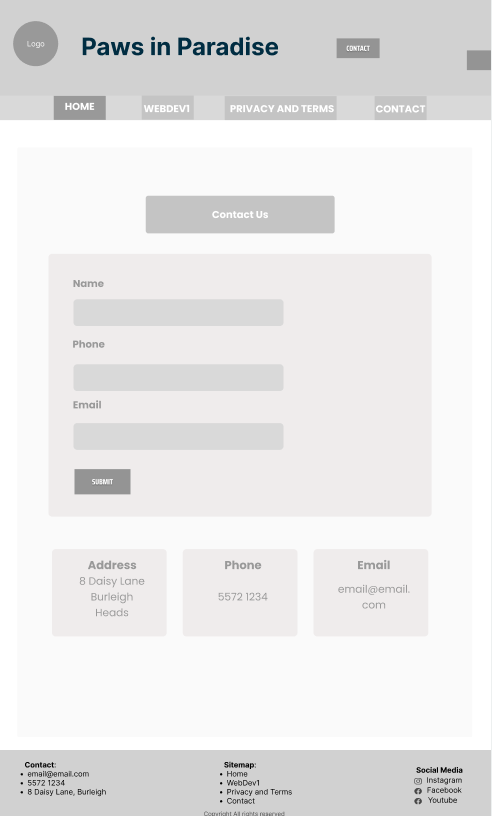
New Wireframe Sketch for Improved Website
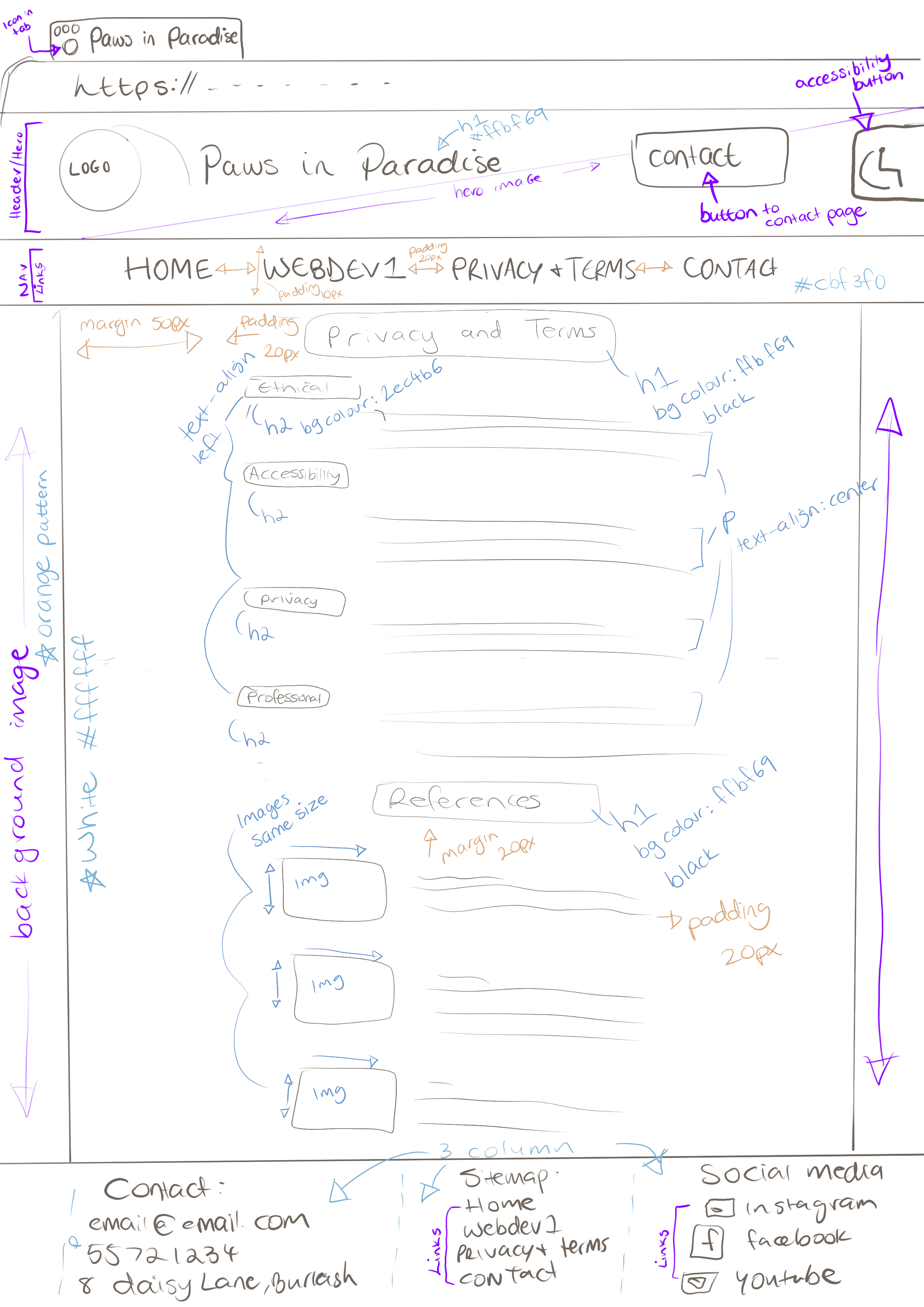
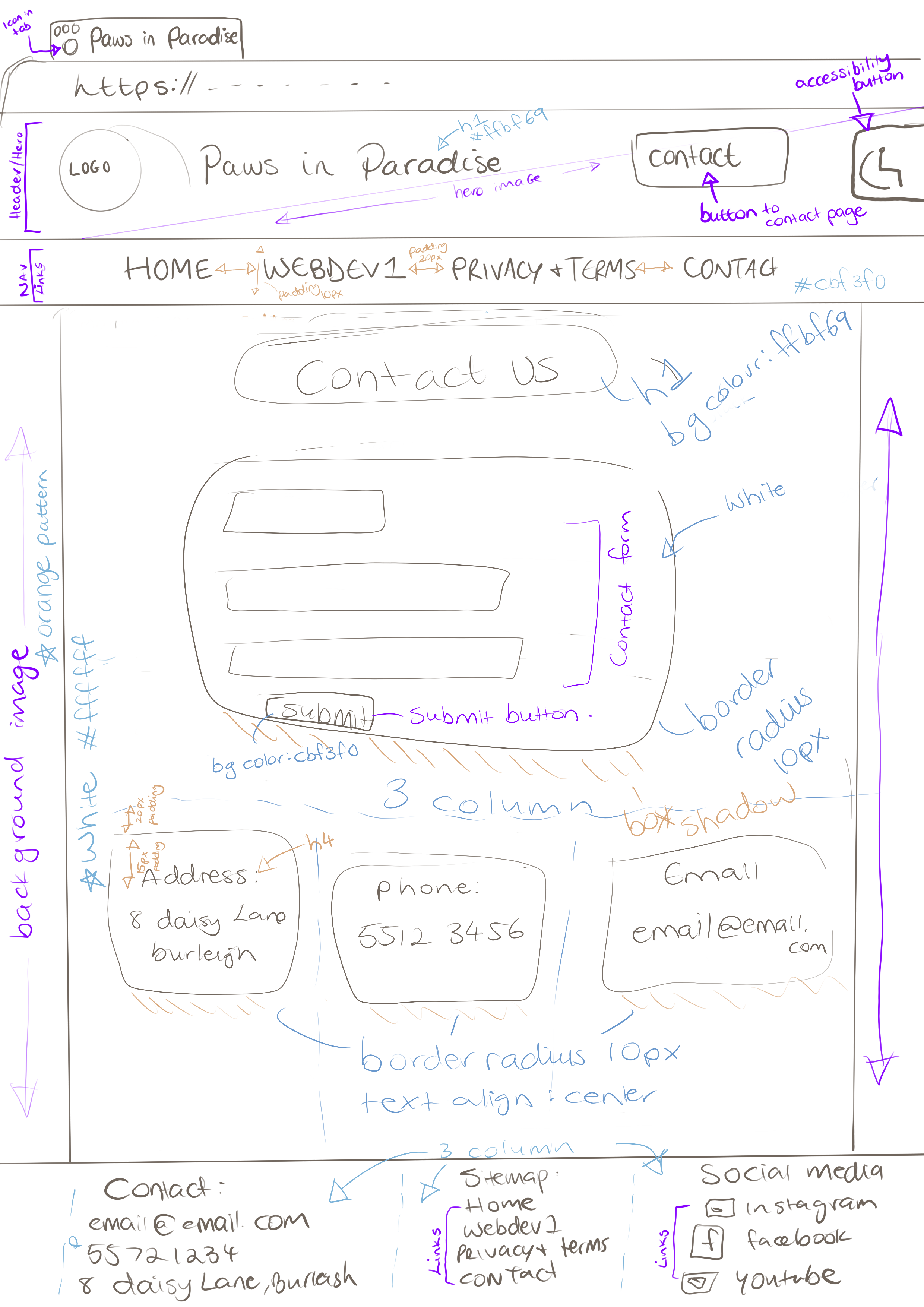
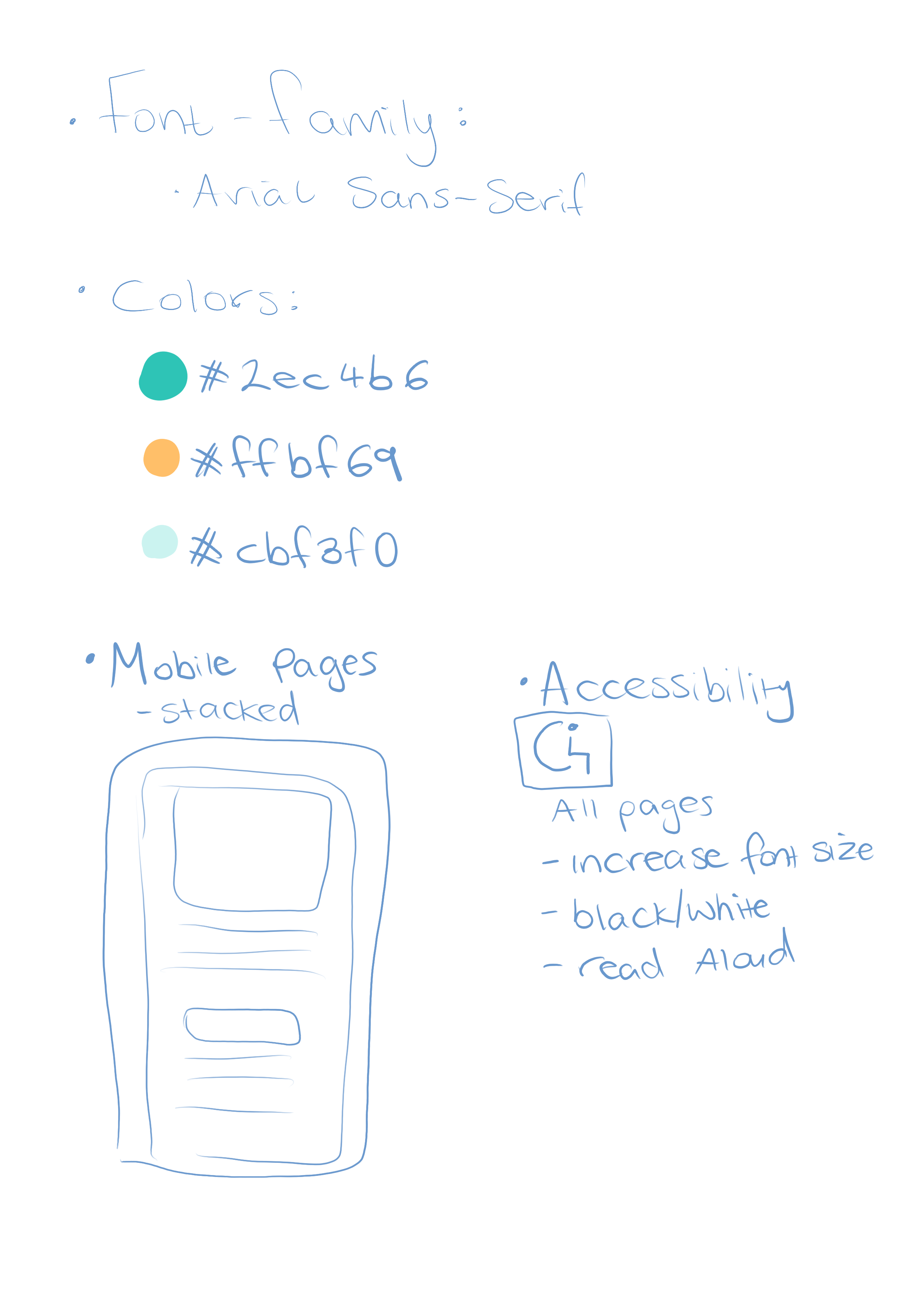
New Figma Prototype
New Sitemap and Folder Structure
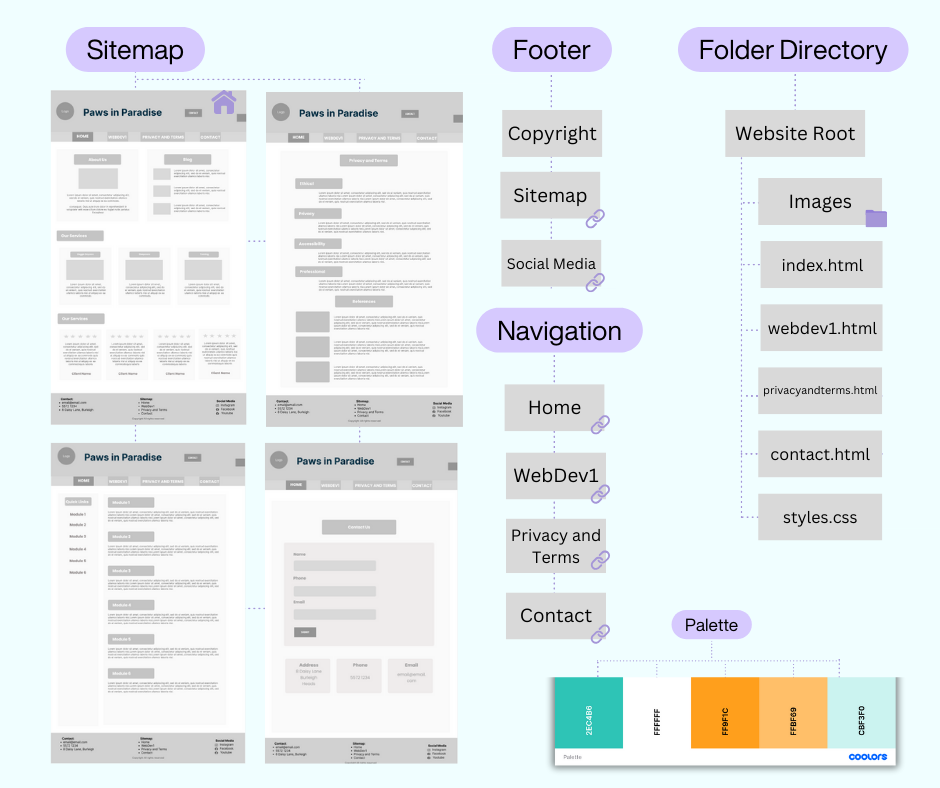
Rebuilding a static website into Wordpress
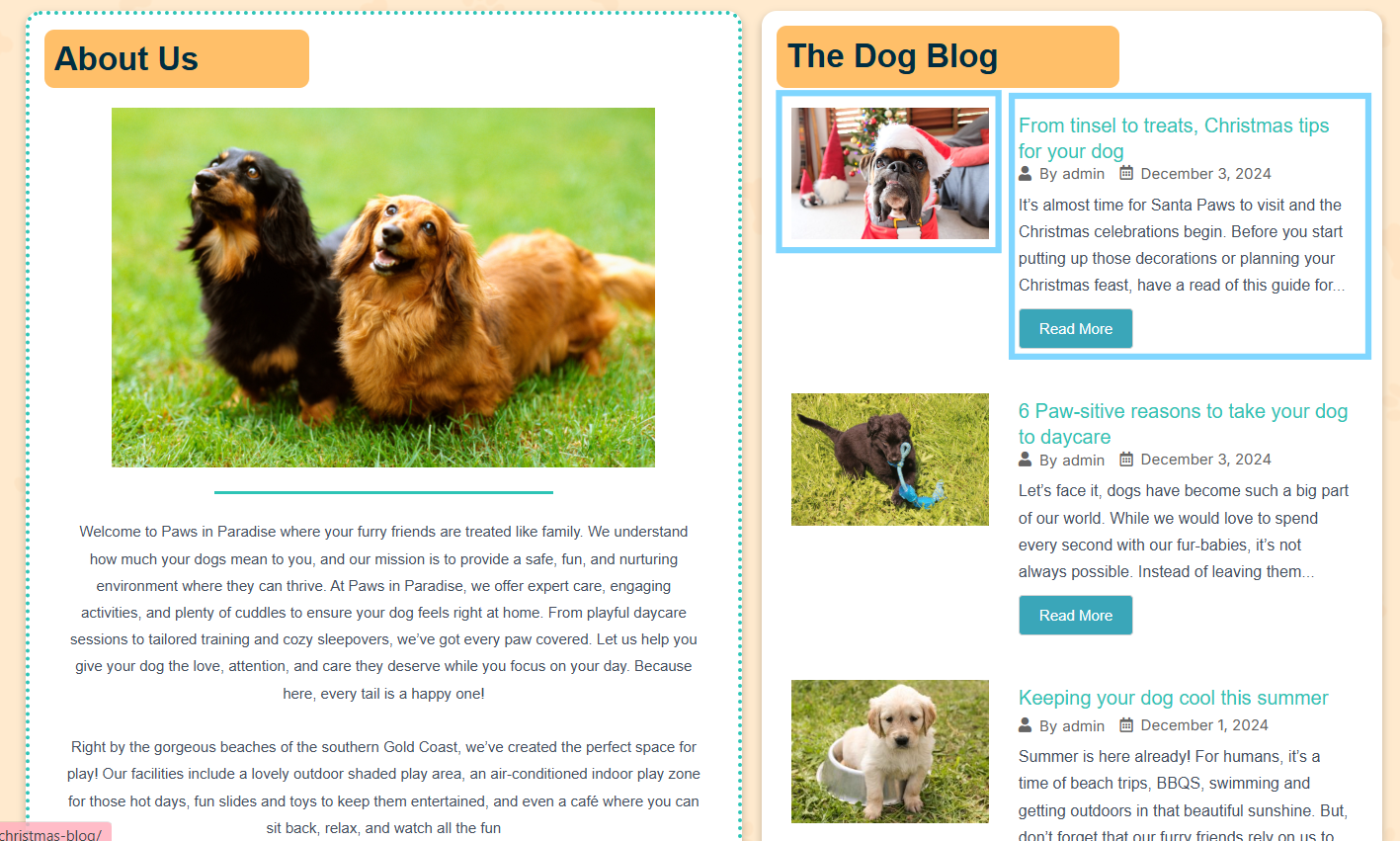
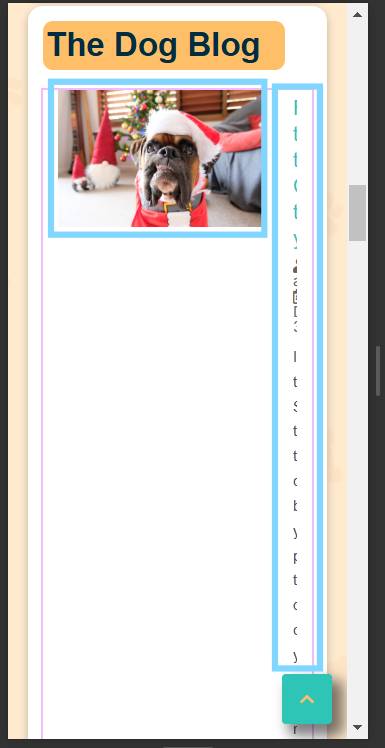
Prior to creating the Wordpress home page, I created it in html with the aim to recreate a copy in Wordpress. Initially, the Home page looked like this. I particularly wanted to use posts created in Wordpress so they could be shown dynamically on the home page. I used a plug in to help me display these. I liked the look of the text being next to the image as shown below image on the left. However, this made the mobile site go haywire (right)
I then tried to adjust the settings of the mobile site to the flex direction = column, which made the mobile site look great, but the desktop site didn’t’ look as good:
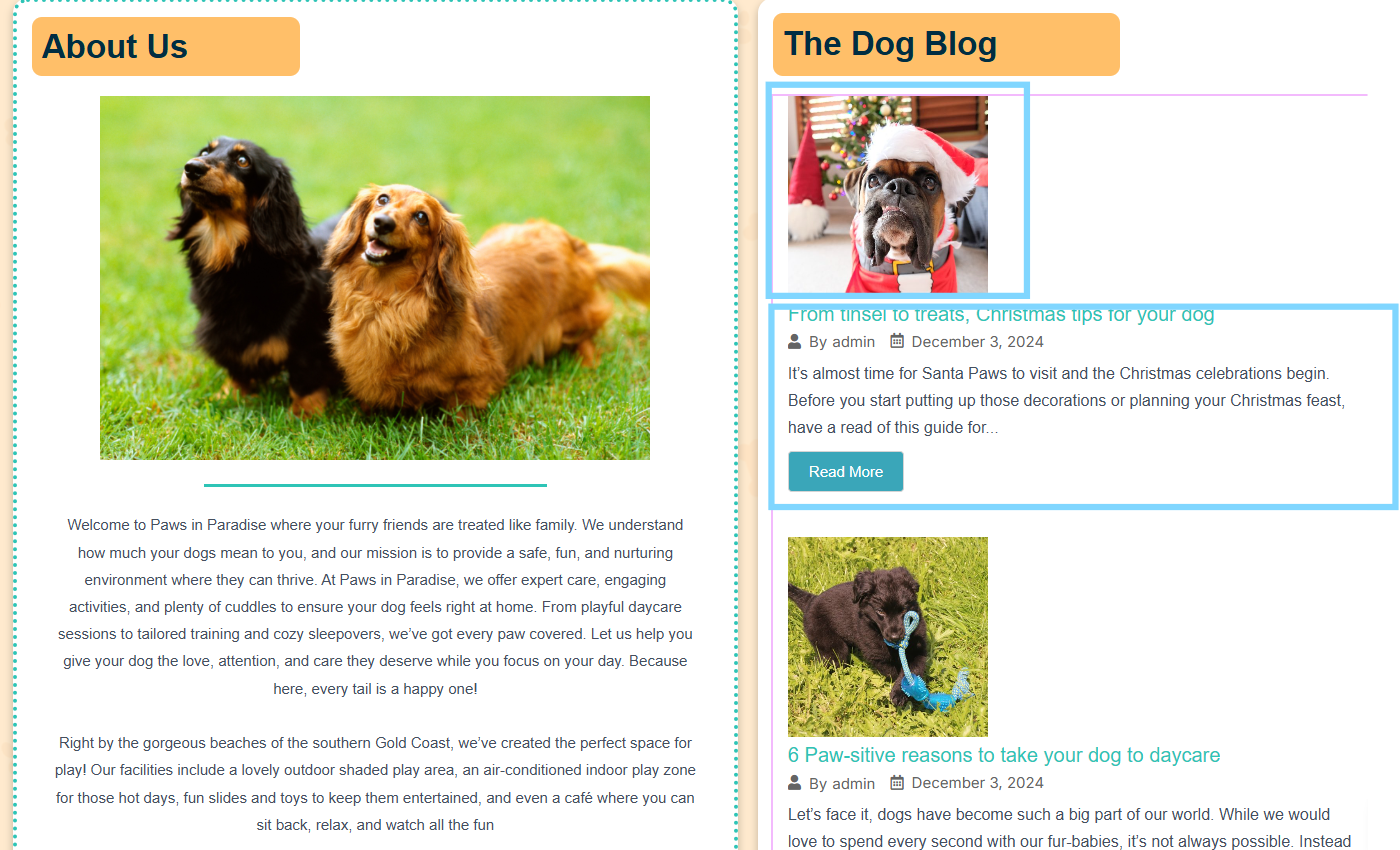
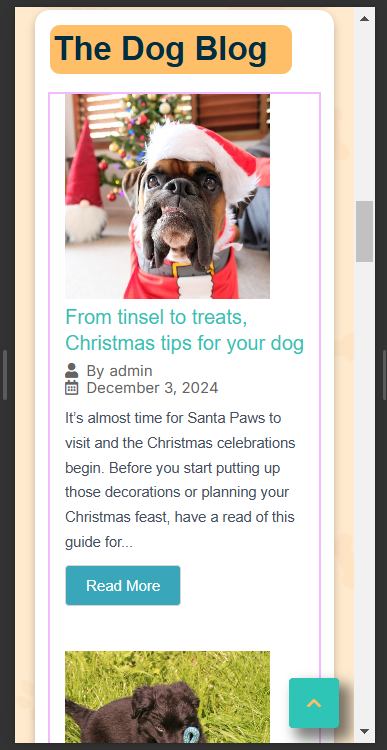
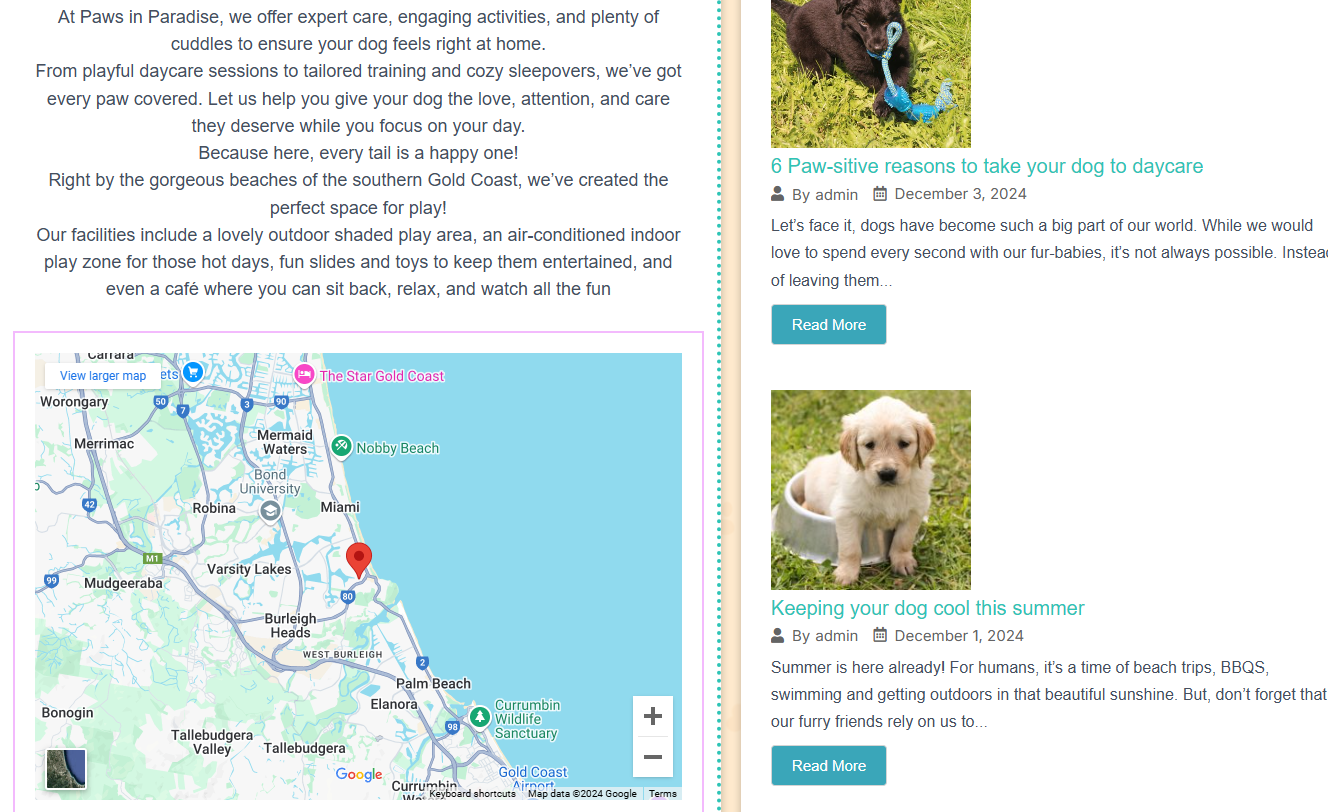
After many hours or trying to get it to display nicely in both, I ended up using the above column flex direction. Due to this, it pushed the content down further on the home page, so I added a Google Map to the About section so the content would be more balances
I also wanted to include the accessibility button in the Wordpress home page, keeping consistent with the rest of my website. This wasn’t a very easy task and could only manage to get it working on desktop site and not the mobile site.

I was able to create the rest of the home page very closely to the original html design:
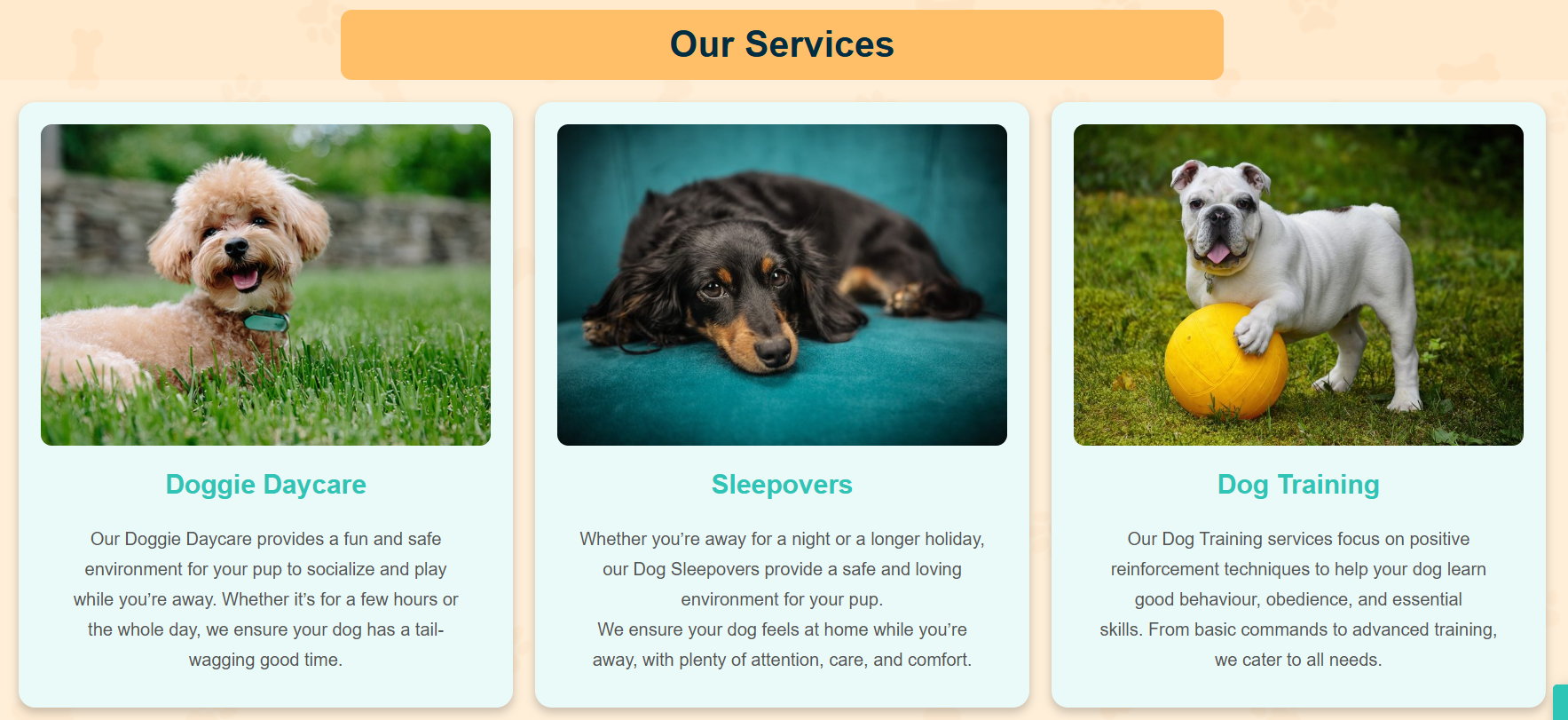
Services Section
Html page:

Wordpress page:
Testimonials Section
Html page:

Wordpress page:

Module 6
Hosting and Getting Online
To run a website on its own domain and server a web developer would need to find a reliable web hosting service and purchase web space. After that, they’d have to register a domain name which is a process managed by auDA. To register a .com.au or .net.au domain, a business or organisation must have a name related to the domain that is being registered.
Collaborating Effectively in Teams
When building a large website, it often involves multiple people working together, this includes copywriters, developers, database administrators and information architects. It’s extremely important to respect everyone’s role and maintain clear communication to be able to ensure the project runs smoothly.
Making Websites Safer for Users
Australia has strict defamation laws, so it’s important to be careful about the content that is included on a website. Following Safety by Design principles can help protect users by focusing on things like being transparent, making sure users have control over their experience, and ensuring the service provider takes responsibility.
Designing for Accessibility
Some users might need extra help to use aa website comfortably. This includes people with vision or hearing difficulties, colour blindness, or trouble seeing low-contrast designs. To make things easier, I’ve added features like adjustable text sizes, a black-and-white mode, and a read-aloud tool. These changes help make the site more accessible for everyone.